SpeedKee · Android keyboard

Finally, your keyboard can have the power it should have had all along.

SpeedKee turns your Android keyboard into a command surface for shortcuts, apps, websites, and the text you use every day. Start simple. Reveal more power when you are ready.

Keep your usual keyboard as default. Switch to SpeedKee when you want its shortcuts and launch commands.

$9.99 on Google Play · Privacy-first · Works alongside your usual keyboard

What it does

Two shortcut types. Two everyday jobs.

SpeedKee adds two kinds of shortcuts to your keyboard. Use either, or both.

Aa

Text shortcuts

Type a short trigger. SpeedKee fills in the rest. Perfect for email signatures, addresses, and phrases you write all the time.

type ty Thank you!
type tY Thank you so much!
type mp My pleasure!
type mP Always happy to help!

Speed shortcuts

Use a key, symbol, or shortcut to launch what you use most — apps, websites, or quick actions. The keyboard becomes a launcher when you need it.

Hold g Gmail
Hold f Facebook

SpeedKee can open links to favorites, such as a favorite photo link, document, map, video, product, or online file, when the app provides a URL.

SpeedKee saves the link, not the original photo or file. When the shortcut runs, the linked item opens.

Can easily handle serious shortcut libraries

SpeedKee has been tested with 3,500+ shortcuts and very long text expansions, including expansions over 10,000 characters, without noticeable lag.

Stay in flow

Create shortcuts without leaving your app.

Long-press 1 to add a new shortcut right from the keyboard. Set it up, then return to what you were doing.

No digging through settings. No hopping between apps to configure something simple.

Tip: On some screens, you may need to hide the keyboard to see the Save/OK button.

Discoverable depth

Starts simple. Grows with you.

The power is built in from the start. Each step simply reveals more of it.

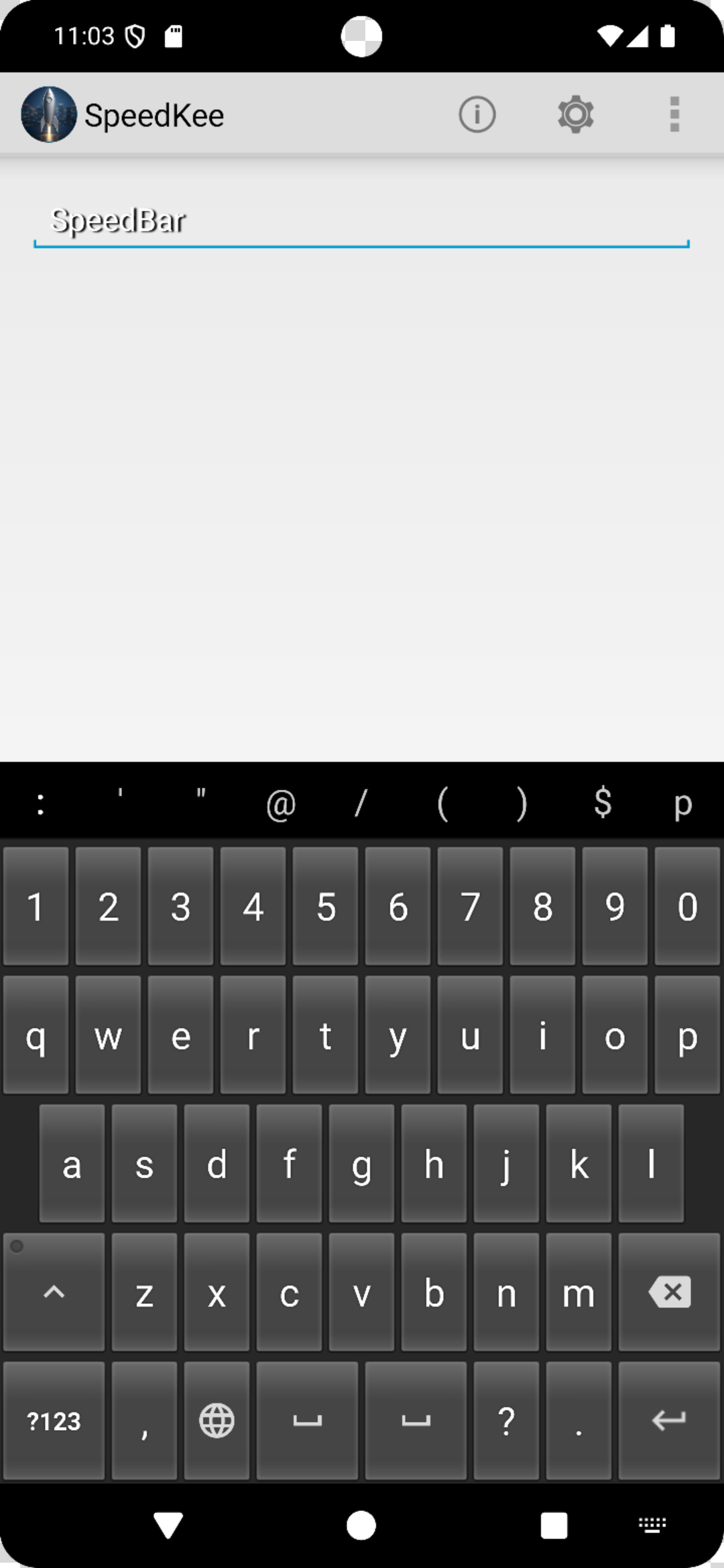
SpeedKee — familiar starting view
Step 01

Familiar start.

Clean keyboard, simple text shortcuts, and direct launching.

nf + spaceNetflix
tt + spaceTikTok
yt + spaceYouTube
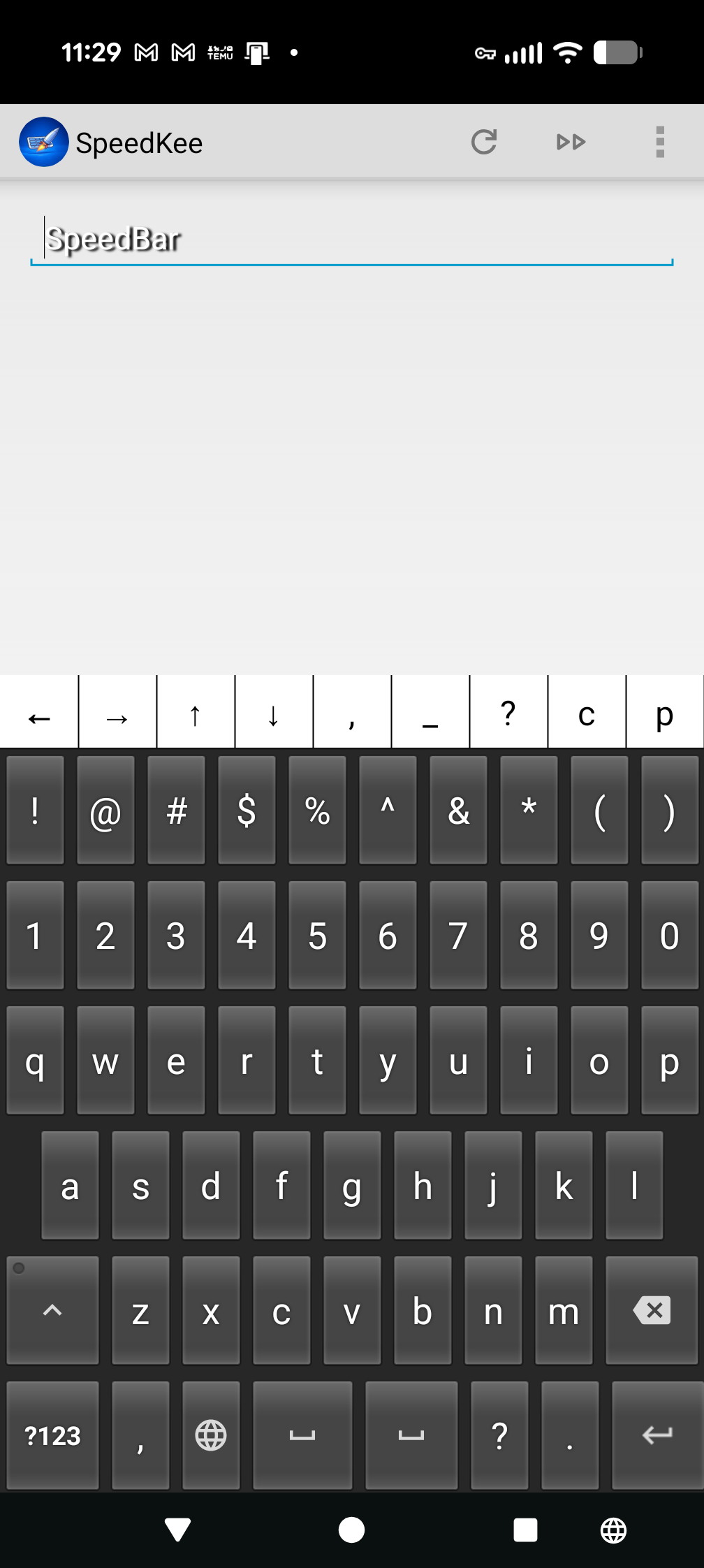
SpeedKee — more tools visible
Step 02

More tools visible.

Shifted-number and utility keys bring common tools into view.

hold #Calculator
hold *Emoji menu
hold @email app
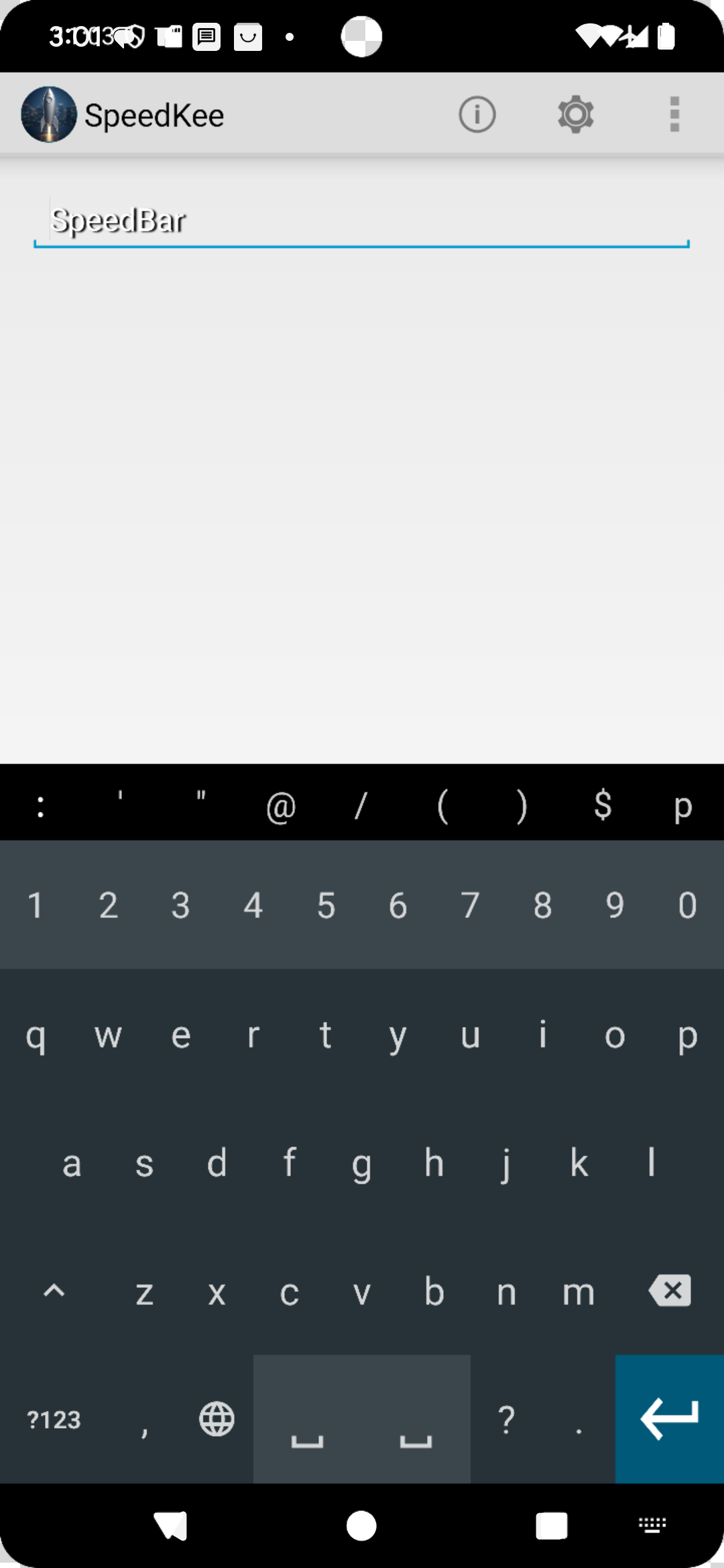
SpeedKee — advanced command view
Step 03

Advanced command view.

Visual icons, hubs, and more launch options appear when you want them.

hold 🚗ride app
double-tap ⏰alternate destination
icon + lettercategory jump

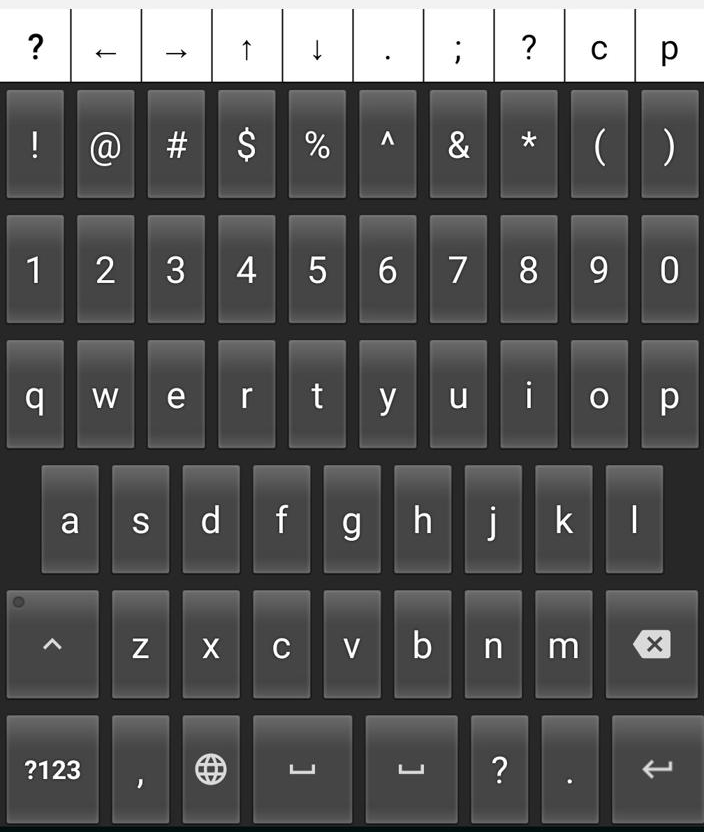
? keys can act like question modifiers near related icons.

? + 📧What is your email address?
? + ☎️What is your phone number?
? + ⏰What time works for you?
? + 📅What day works for you?

Same keyboard. Same idea. You choose how much of it shows up at once.

Reassurance

It does not take over your phone.

Use SpeedKee full time, or call it up only when you need it. Your phone stays yours.

Keep your usual keyboard as your default.
Switch to SpeedKee when you want shortcuts, launch commands, or its custom tools.
Use SpeedKee full time only if you choose to.
Built for privacy-conscious users

No microphone. No location. No contacts.

SpeedKee stores your shortcuts on your device. Voice typing is handled separately by Google Voice Typing. Apps you launch from SpeedKee continue to use their own permissions and settings.

On your device

Your shortcuts are stored locally on your device.

No mic permission

SpeedKee never requests microphone access. Voice typing is handled separately by Google Voice Typing.

No contacts, no location

SpeedKee does not request access to contacts or location.

No tracking

No analytics, no telemetry, no ad IDs. SpeedKee does not phone home.

Also from GnuKey
Same idea, free on Windows.

New to shortcuts? Try MultiShortcuts Pro on your computer first. SpeedKee brings the same paradigm to your phone keyboard.

MultiShortcuts Pro

The power your familiar keyboard was missing.

Install SpeedKee, choose a view, and try your first shortcut.

Important: open the setup guide before you install.

It walks you through every step in plain language — including how to switch keyboards and try your first shortcut. Keep it open in another tab while you install.

Open the setup guide →

Not sure yet? Try MultiShortcuts Pro free on Windows first →

Want a preview of the advanced view? Try the optional demo →