Add anything to your keyboard.
No URLs to type. No copying and pasting. Just share any app or website directly to SpeedKee — one tap and it's on your keyboard forever.
Find an app you want on your keyboard. Then share it to SpeedKee — the URL lands on your Speedbar instantly.
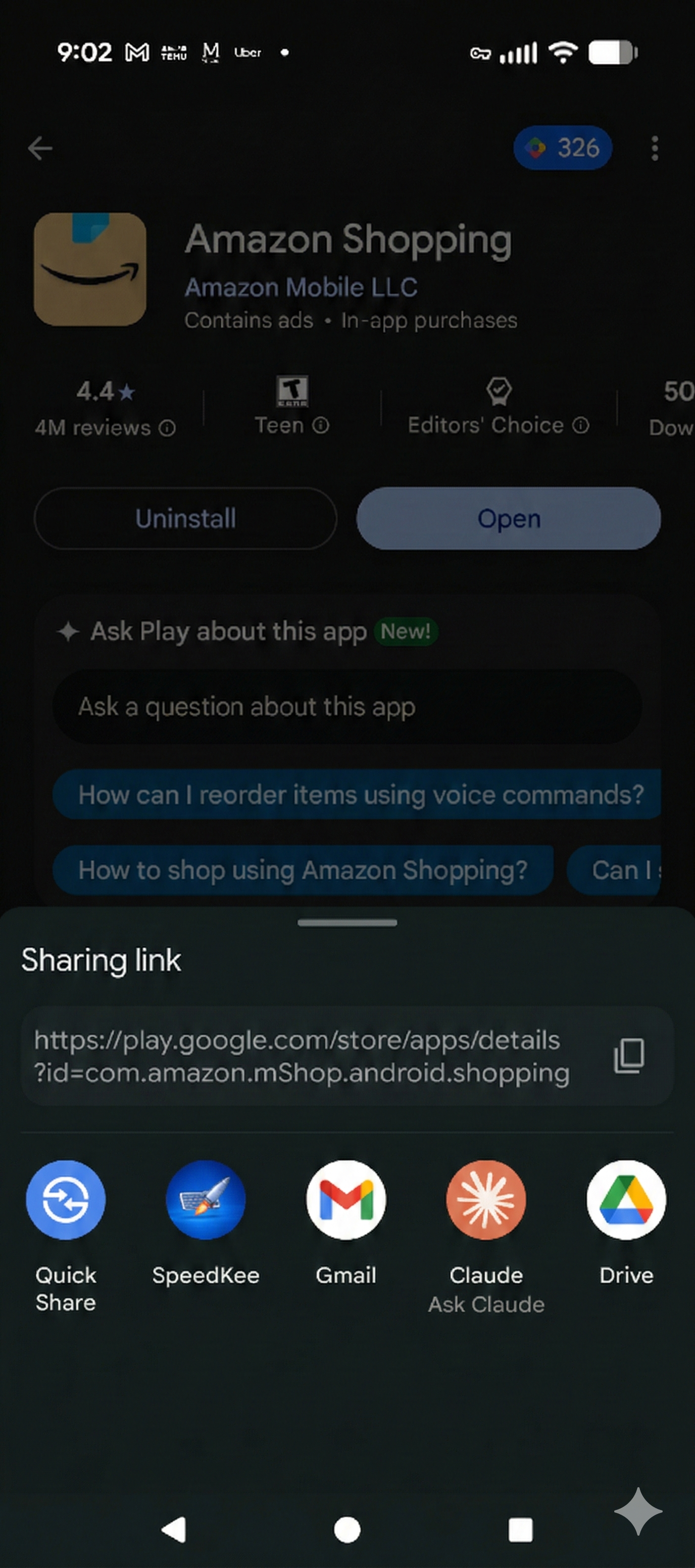
If you don't see it, scroll down or tap "More." After using it once, SpeedKee moves to the top.
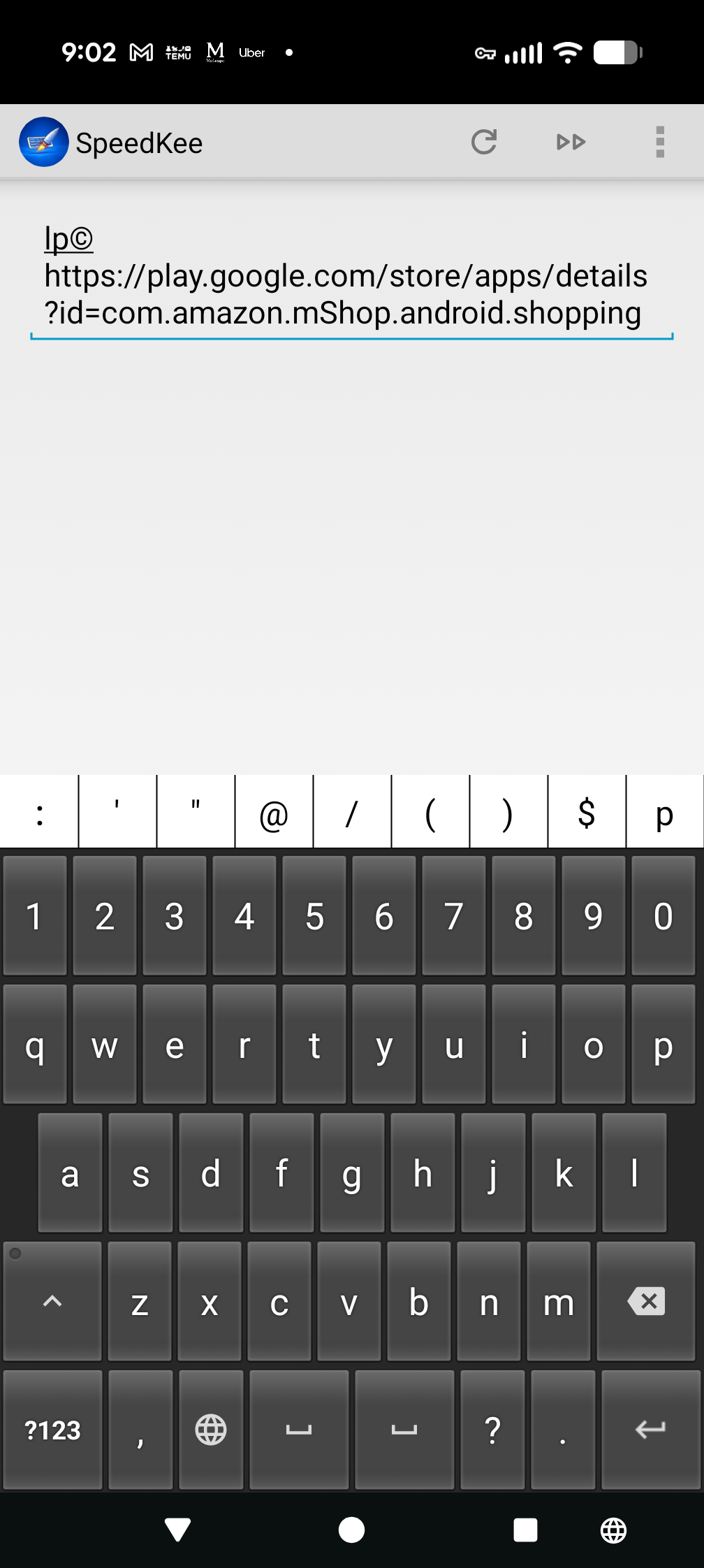
From here you assign it a trigger — long-press, double-tap, icon + letter, or Rocket key.
Choose how you want to launch this app or site. Any of these methods work.
| Method | How to use it |
|---|---|
| Long-press | Type lp then tap the icon |
| Double-tap | Tap the icon twice |
| Icon + letter | Tap the icon once + any letter |
| Rocket key | Tap 🚀 + any letter |
In Chrome, tap Menu → Share → SpeedKee to send any web address to your Speedbar instantly. Any site you visit can become a one-tap destination on your keyboard.
Browse apps and share one to SpeedKee.
Rocket + P anytime to jump straight to the Play Store.⚠ Troubleshooting
SpeedKee doesn't overwrite existing shortcuts. Long-press 3 to search for the old one and delete it first, then create your new one.
Android sometimes buries share targets. Scroll down or tap "More" to find SpeedKee. Once used once, it moves to the top.
Make sure SpeedKee is your active keyboard when you share. Switch to SpeedKee first, then repeat the share.
Tap the Play Store link above or use Rocket + P. Once you find an app, use the Share menu to send it to SpeedKee.
You've got the tools. Next up — the full command reference, so you always know what's possible.